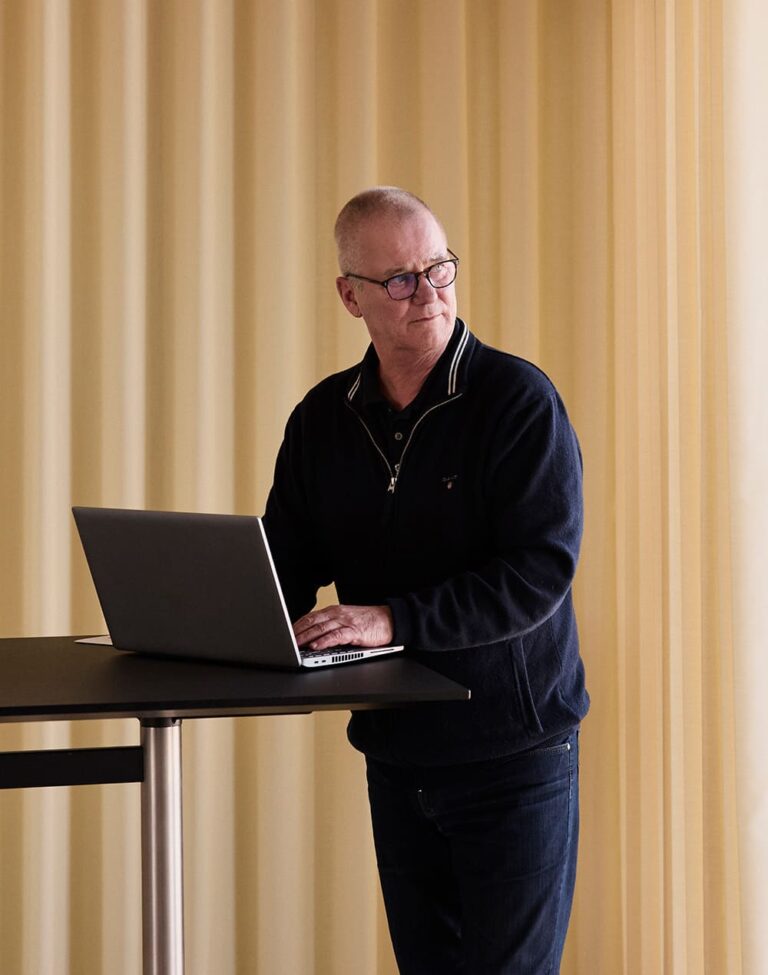


When the dashboard is tailored, job satisfaction increases
Imagine each department being welcomed by a dashboard adapted to their specific area of work. A well-designed dashboard guides your colleagues directly to the knowledge and registrations they use the most – and at the same time it contributes to the platform feeling clearer and more manageable from the very first click.
When there are many policies and processes that must be followed, finding the right content can be challenging, especially for colleagues who do not work in the platform every day. Here, the dashboard plays a central role. Clear shortcuts to the most relevant content reduce frustration and give your colleagues quick access to what they are looking for.
Explore the 7 tips and get inspiration for creating tailored dashboards that support your colleagues’ areas of work.
Tips for setting up dashboards
- Clarify the need for dashboards in the organisation
A good dashboard starts with people, not structure. Many organisations benefit from setting up dashboards tailored to specific departments or competence groups that share work patterns and needs. - Appoint the right dashboard administrators
Dashboards are often most relevant when created by people with insight into the organisation. Administrators familiar with departments and competence groups typically have the best foundation to create dashboards that match users’ needs and the reality they work in. - Keep content to a minimum
When creating a new dashboard, it can be tempting to include many elements that all seem important. Instead, start by focusing on the most essential items. A simple and clear dashboard makes it easier to navigate. - Place the most important items at the top
Users’ attention is highest at the top of the page. Ensure that the most frequently used elements are here – for example, quick links to key areas, overviews of favourite documents, or direct access to frequently used registrations. The faster users can orient themselves, the smoother their workflow becomes. - Create space and variation
Avoid placing too many elements close together, and allow space between them so the dashboard feels clear and balanced. Also vary the size of elements – let some items take up more space while others are smaller. This makes the dashboard more visually appealing and easier to navigate. - Reflect the organisation’s values
Dashboards can also help strengthen the organisation’s identity. By using images and visual elements, the dashboard can reflect culture, values, and shared direction. - Adjust regularly – needs change
Dashboards should not be static. Organisations evolve, and so do users’ needs. It is therefore a good idea to regularly gather feedback, assess whether elements are positioned effectively, and remove content that no longer adds value. Small adjustments can make a big difference to the experience.
Create tailored dashboards and boost knowledge sharing and efficiency (in Danish)
Do you want to make it easier for colleagues to find the knowledge they need? In this webinar, we will show how you as an administrator can customise dashboards in D4InfoNet to specific teams and roles. You will learn how to present the most important information upfront, reduce clicks, and support quality and workflows with simple, effective dashboards.
Looking for more inspiration or support?
Start the guide below to see how a dashboard can be designed. If you need advice or assistance with setup, our consultants are ready to help you get off to a great start.